Page Options
Page Options change the theme's settings for one page, post, project or product, without touching the rest of the site. Every option starts empty, which means "as in Theme Options": only what you set is changed.
Where to find them:
- In the WordPress editor, in the Page Options box below the content.
- In the live builder, in the Page options tab. Click Save page options there.
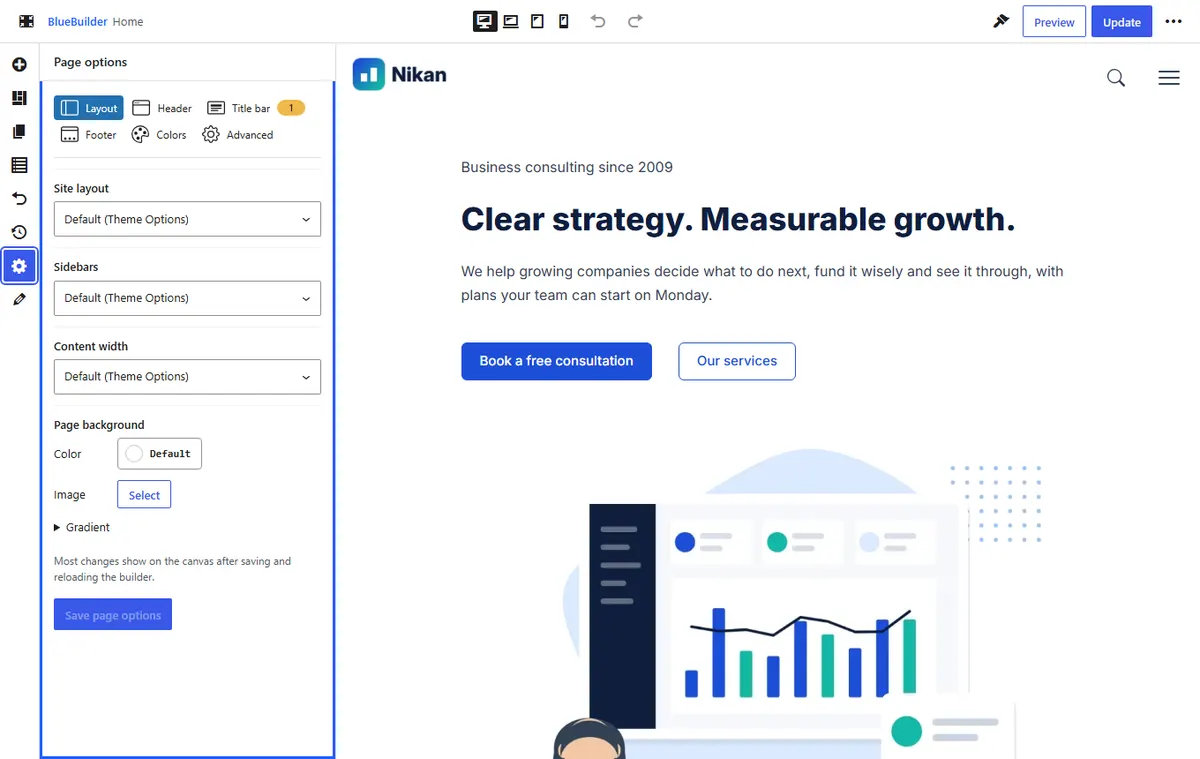
Layout
- Site layout: full width or boxed, for this page.
- Sidebars: No sidebar, Sidebar at the start, Sidebar at the end or Sidebars on both sides, and which sidebar to show.
- Content width: Narrow, for reading, Standard or Wide.
- Page background.
Header
- Header template: By display conditions (the usual), a template of your choice, or None: the classic header. This overrides the templates' display conditions on this page.
- Transparent header template: Floats over this page, for a page that starts with a large image, or Not on this page.
- For the classic header: its Header style, Header position and Sticky header.
Title bar
Show or hide the title bar on this page, choose its layout and background, give it a different Title (empty uses the page title), and show or hide the breadcrumbs.
Footer
Footer template (by display conditions, a template of your choice, or none for the classic footer), Footer style, and the Back to top button.
Colors
Any color of Theme Options → Colors, for this page only: for example a dark header and footer on a landing page. Empty colors keep the site's colors. Dark mode keeps its own colors.
Advanced
- One-page mode: menu links to sections of this page (
#services) highlight as each section scrolls into view. See one-page sites. - Body classes: extra CSS classes on this page's
<body>, for your own CSS. - Custom CSS for this page: printed on this page only, after the theme's styles.
Note On the blog page, the Page Options of the page set as Posts page in Settings → Reading apply. On the shop, those of the shop page apply.