Your first page
This walk-through builds a simple page with BlueBuilder, the theme's drag-and-drop builder, from a pre-built section and a few elements.
1. Create the page
- Go to Pages → Add New Page and type a title, for example "About us".
- Click Edit with BlueBuilder in the editor's top bar, then Edit live.
The live builder opens: your page on the right (on the left on a Persian site), and the builder panel beside it.
Tip Existing pages open the same way: Edit with BlueBuilder under the page's name in Pages, or in the admin bar while you view the page.
2. Add a pre-built section
- In the panel, open the Pre-built sections tab.
- Pick a category, such as Hero, and click a section. It is added at the end of the page.

Pre-built sections take the site's colors and fonts from Theme Options, so they fit your site from the start.
3. Change the texts
Click any heading or paragraph on the page and type. To change everything else about an item, click it once: its toolbar appears, and the panel shows its settings.
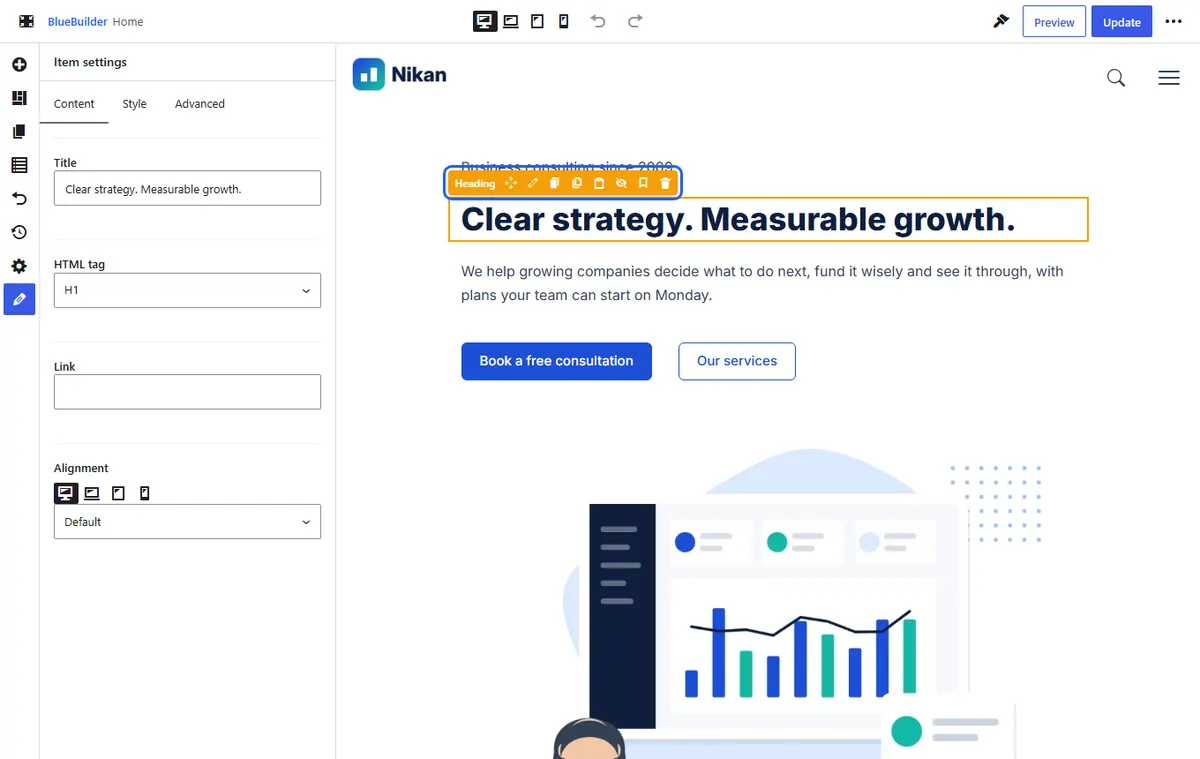
- Content: the item's own settings: the text, the image, the link.
- Style: fonts, colors, background, spacing, border and shadow.
- Advanced: animation, visibility on devices and for visitors, custom CSS.
4. Add an element
- Open the Elements tab.
- Drag an element, such as Button, onto the page. A blue line shows where it will go. Or select a wrap and click the element to add it there.
- Fill in its settings.
There are more than 100 elements. Type in the search box at the top of the tab to find one, or see the elements reference.
5. Check phones and tablets
Use the device buttons in the top bar to see the page as a laptop, tablet or phone shows it. A setting you change while a device is chosen applies to that device and smaller ones only, so you can make a heading smaller on phones without touching the desktop.
6. Publish
Click Update (or press Ctrl+S) to save the page. Preview shows your changes in a new tab without saving them.
A new page stays a draft until you publish it once: open the ⋯ menu at the end of the top bar, choose Back to the WordPress editor and click Publish. From then on, Update puts every change on the site at once.
The builder also keeps a copy of your work every minute while you edit. If your browser closes before you click Update, open the page in the builder again and click Restore it.
Next
- Learn the whole builder: the live builder.
- How pages are put together: sections, wraps and elements.
- Make the header and footer your own: header and footer.