Installing BlueTheme
What you need
- WordPress 6.4 or newer and PHP 8.0 or newer.
- An upload limit of at least 16 MB, for the theme's zip file. If the upload fails with a size error, ask your host to raise
upload_max_filesize, or upload the theme folder by FTP intowp-content/themes/. - For a shop: WooCommerce. The setup wizard offers to install it.
BlueTheme loads nothing from other servers: fonts, icons and scripts are all inside the theme. It works on hosts and for visitors where Google services are blocked.
Install the theme and the child theme
You get two files: bluetheme-{version}.zip (the theme) and bluetheme-child-{version}.zip (a child theme).
- In the dashboard, go to Appearance → Themes → Add New Theme → Upload Theme.
- Upload
bluetheme-{version}.zipand click Install Now. Don't activate it yet. - Upload
bluetheme-child-{version}.zipthe same way, then click Activate.
The child theme keeps your own CSS and code changes safe when BlueTheme is updated. If you will never change the theme's code, activating BlueTheme itself works too. You can switch later without losing anything: Theme Options, templates, menus and widgets belong to the site, not to the active theme.
After activation the setup wizard opens. You can close it and come back any time from BlueTheme → Setup wizard.
The BlueTheme menu
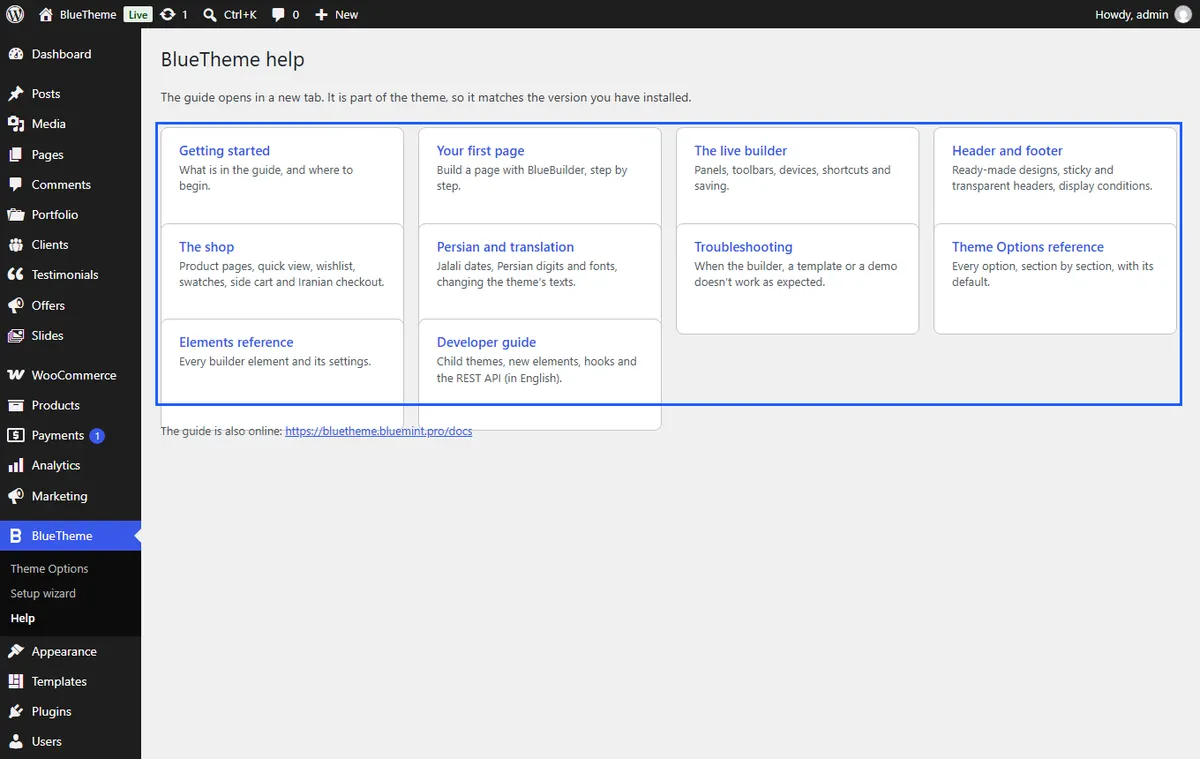
Everything the theme adds is in the dashboard:
| Where | What it is |
|---|---|
| BlueTheme → Theme Options | Site-wide settings: layout, colors, fonts, header, blog, shop and more. See Theme Options. |
| BlueTheme → Setup wizard | Plugins and demo import. See the setup wizard. |
| BlueTheme → Help | This guide. |
| Templates | Headers, footers, popups, mega menus and other layouts made with the builder. See templates. |
| Portfolio, Clients, Testimonials, Offers, Slides | Content the builder's lists and sliders show. See content. |
License and updates
With a license key, the theme updates from the dashboard like a theme from WordPress.org.
- Go to BlueTheme → Theme Options → Global → License & updates.
- Enter your License key. Leave Update server URL as it is, unless your seller gave you another address.
- Click Save. License status shows whether the key is active.
New versions then appear in Dashboard → Updates. Choose the Beta update channel only on a test site.
Tip Before updating a live site, back it up, and if you can, try the update on a copy first. Your settings, pages and templates are kept; only the theme's files change.
Updating by hand
Without a license key, update by uploading the new zip: Appearance → Themes → Add New Theme → Upload Theme, then choose Replace current with uploaded. Don't delete the old theme first; deleting it does not remove your settings, but the site would have no theme for a moment.