The shop (WooCommerce)
BlueTheme styles every WooCommerce page and adds shopping features: quick view, a wishlist, color and size swatches, a side cart, a sticky add-to-cart bar on phones, and Iranian address fields. Install WooCommerce first (the setup wizard offers it); the shop settings and elements appear once it is active.
Shop settings are in Theme Options → Blog, Portfolio & Shop: Shop catalog, Single product, Cart, checkout & extras and Account & login.
The shop page and categories
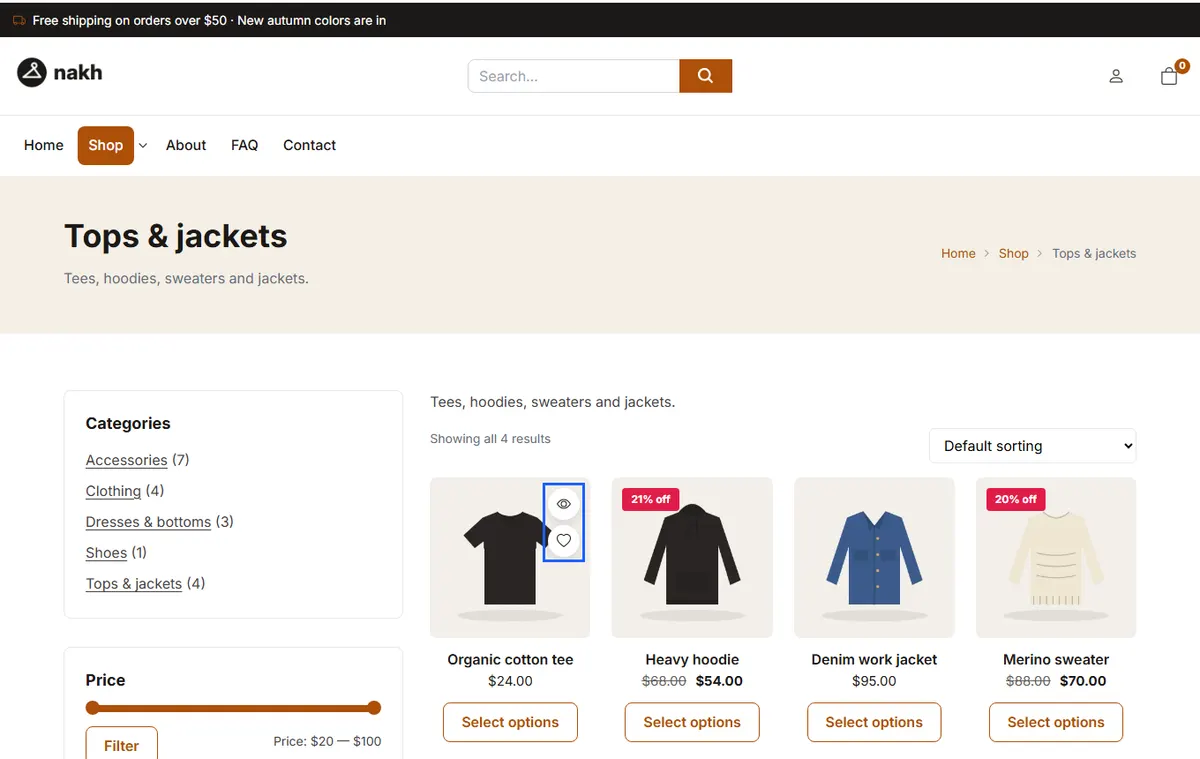
Shop catalog sets:
- Products per page and columns per device; grid or list.
- The product card: its look (default, card, minimal, overlay), image shape, zoom on hover, the second image on hover, which parts it shows, and the add-to-cart button (always or on hover).
- The sale badge ("Sale!" or the discount percent, in four shapes) and a "New" badge for recent products.
- The Shop sidebar position. Fill it with WooCommerce's filter widgets (price, color, size) in Appearance → Widgets. With Filters in a slide-out panel on mobile it opens from a Filters button on phones.
- Pagination: numbers, "Load more", or infinite scroll.
- Catalog mode: nothing can be bought, prices can be hidden, and products show an inquiry button instead.
Product pages
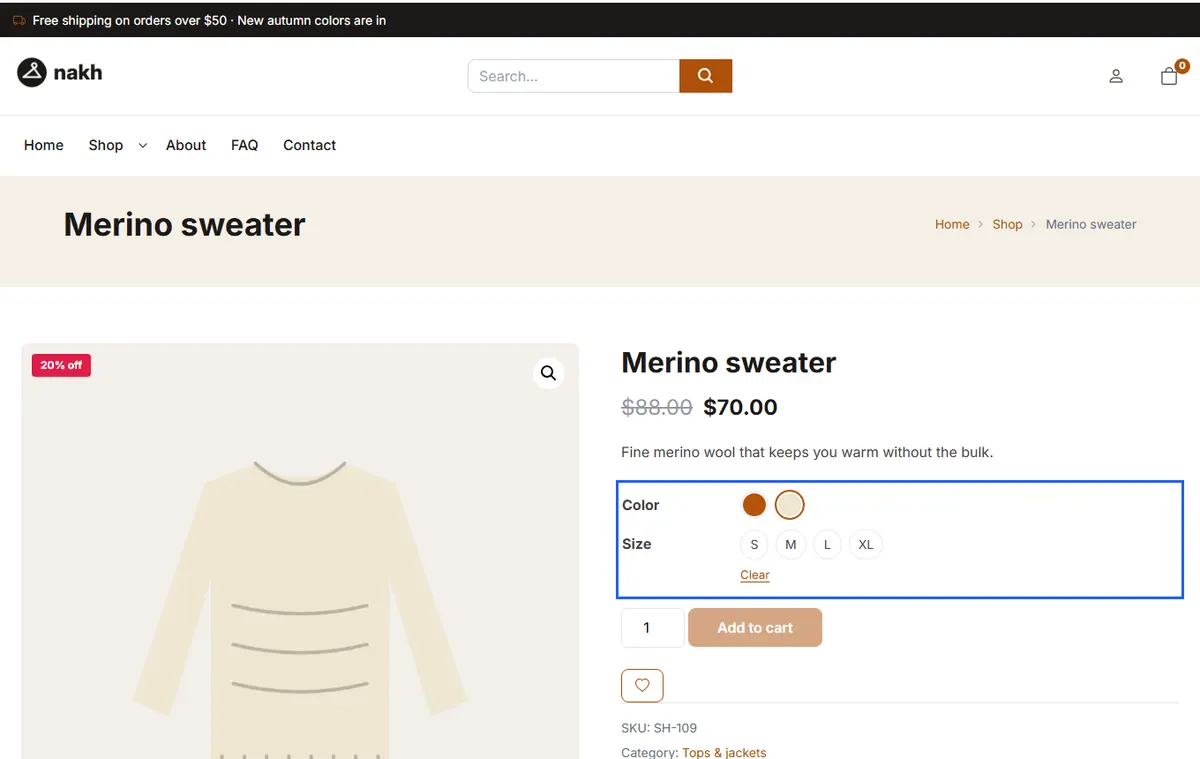
Single product sets the layout (default, wide gallery, sticky summary, stacked), where the thumbnails go, gallery zoom and full-screen view, how the details show (tabs, an accordion or open sections), and which parts to show: SKU, categories, tags, share buttons, related products and upsells.
Swatches: product options (such as color and size) show as buttons instead of dropdowns.
- Go to Products → Attributes and edit an attribute, such as Color.
- Open each term (Red, Blue…) and set its Swatch color or Swatch image.
- Turn on Variation swatches in Single product, and choose their Swatch shape and Swatch size.
Options without a color or image show as text buttons.
Shopping features
In Theme Options → Blog, Portfolio & Shop → Cart, checkout & extras (the sticky bar is in Single product):
| Feature | What it does |
|---|---|
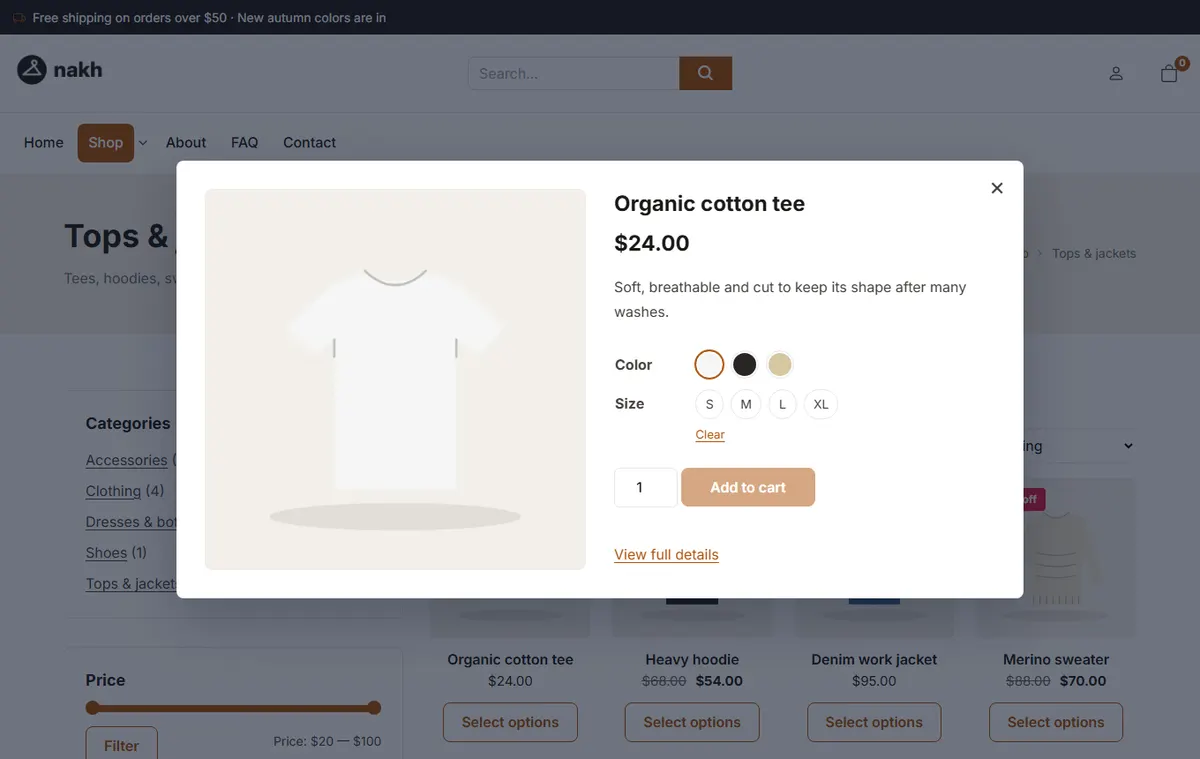
| Quick view | A button on product cards opens the product in a window, with its options and add to cart. |
| Wishlist | Heart buttons on cards and products. Guests' lists stay in their browser; customers' lists are saved to their account. Choose the Wishlist page, or put [bluetheme_wishlist] on any page. Works with YITH WooCommerce Wishlist too. |
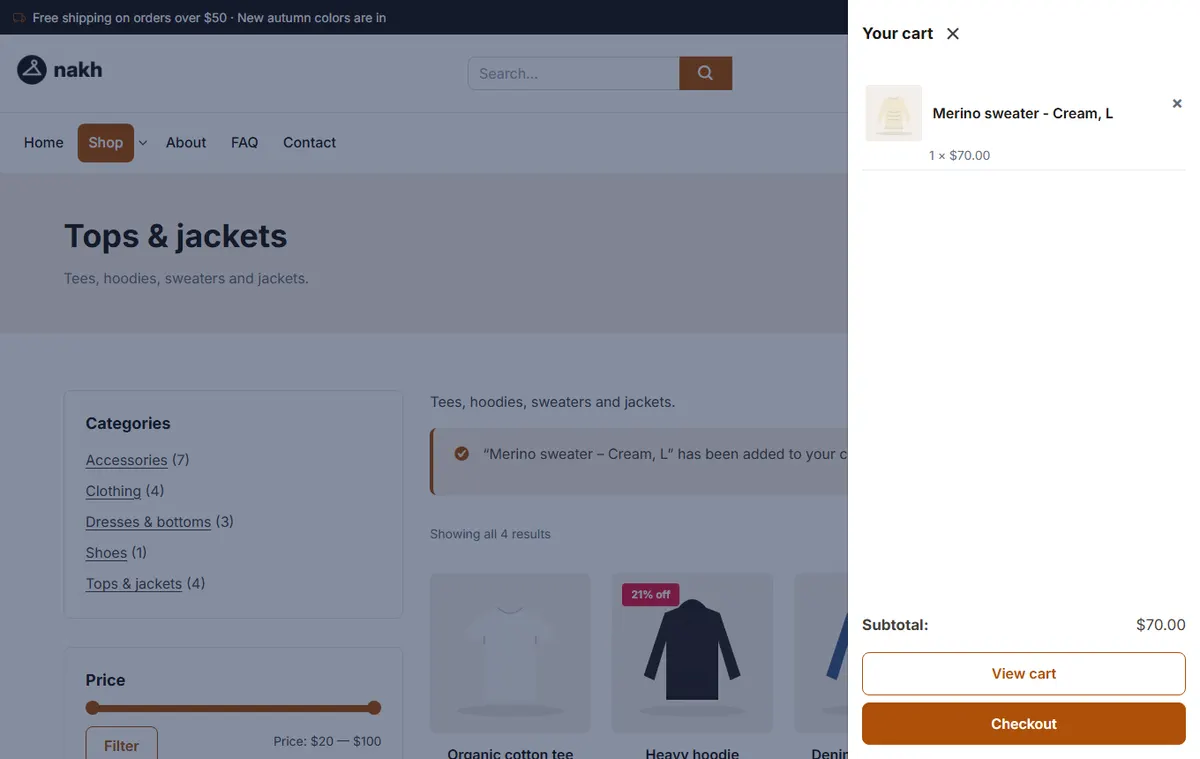
| Side cart drawer | The cart icon opens the cart in a side panel. It can also open by itself after adding a product. |
| Add to cart without reloading | On product pages, adding to the cart keeps the visitor on the page. |
| Sticky add-to-cart bar | On phones (or all screens), a bar with the price and button stays at the bottom once the form scrolls away. |
| Cart layout, Checkout layout | One column or two; the checkout can also be Distraction-free (no header or footer): only the logo, a "Secure checkout" note and a link back to the cart. |
Building shop layouts
- Elements for any page: Shop (a grid of latest, featured, on-sale, best-selling or chosen products), Shop Slider, Product Categories and Mini Cart.
- A product page of your own: a Single product template, built from the Product page elements (title, gallery, price, add to cart, tabs, related…). Use display conditions to apply it to all products or some categories.
- A shop page of your own: a Shop archive template with the Shop Products element.
Iran
- Currency: for Toman (IRT) and Rial (IRR), choose the label in Theme Options → Global → Localization → Currency label. On Persian sites prices show in Persian digits.
- Addresses: with Persian address field order and Iranian province and city dropdowns (Cart, checkout & extras), the classic checkout asks for province, city, address and postal code in that order, and the city becomes a searchable list of the province's cities. With the Persian WooCommerce plugin active, its own fields are used instead.
- Payment: Iranian gateways (ZarinPal and others) are plugins; the theme styles their buttons and pages. The classic checkout page (the
[woocommerce_checkout]shortcode) works with most of them; the block checkout may not.
One-time code login
Customers can log in or sign up with a code sent to their mobile number by SMS (or to their email), instead of a password. Set it up in Theme Options → Blog, Portfolio & Shop → Account & login:
- Under Login methods, turn on One-time code by SMS (or by email), and choose in Registration whether new accounts can be made with a mobile number or an email.
- Under SMS gateway, choose your Provider and enter its details. Until they are ready, use Test mode: codes are not sent, and Show the latest codes lists them for administrators.
- Choose where the form shows in Login form appears in: My Account and the checkout. Add "Log in with a one-time code" to wp-login.php adds it to the WordPress login page too.
Turn test mode off on a live site.