Theme Options
BlueTheme → Theme Options holds the settings for the whole site: layout, logo, colors, fonts, header, menus, blog, shop, footer and more. Every option, with its default, is in the Theme Options reference.
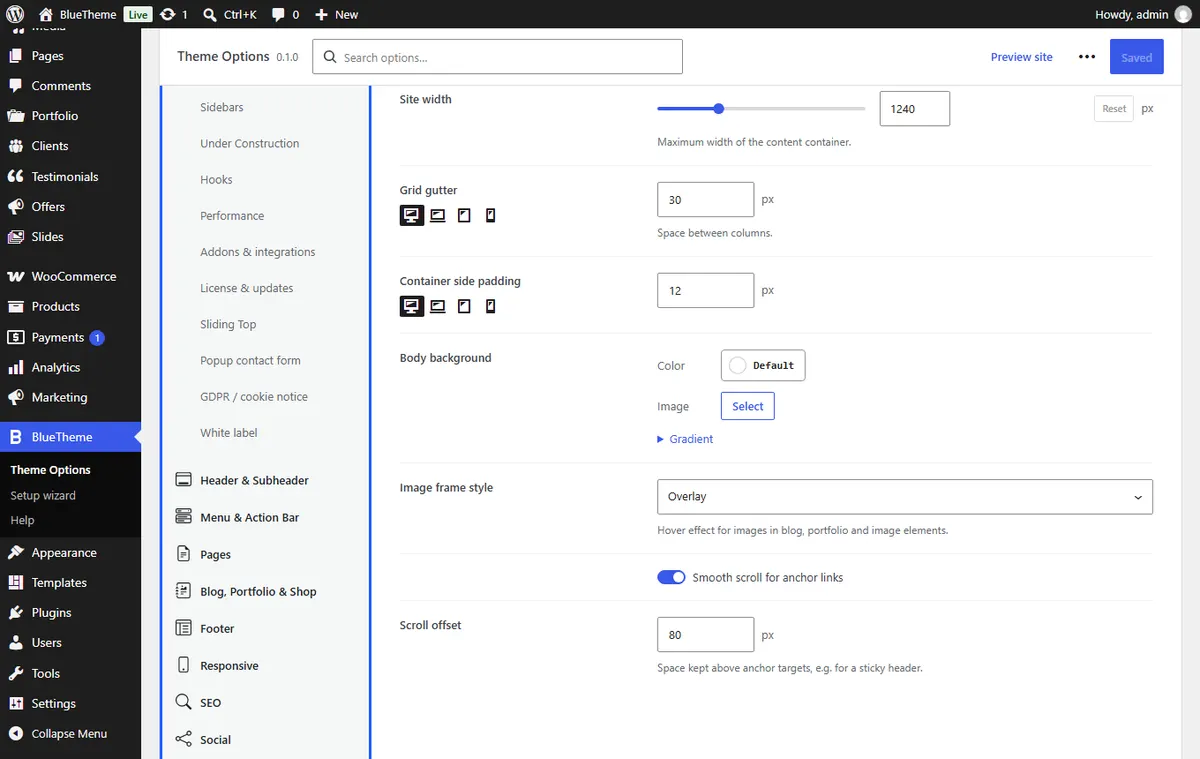
Finding an option
- Sections are listed down the side. Click one to see its parts, then a part to see its options.
- Search options… at the top finds an option by name or description and takes you to it.
- Help next to each part opens its page in the reference.
Saving and undoing
- Save changes applies your changes to the site. Leaving the page with unsaved changes asks you first.
- Preview site opens the site in a new tab.
- Reset section puts the options of the part you're viewing back to their defaults.
- More actions (⋯) has Export options (a
.jsonfile of your settings), Import options… (from such a file) and Reset all options….
Tip Export your options before big changes. Importing the file brings everything back. Export files never contain passwords or API keys, and an import keeps the ones the site already has.
Settings per device
Options with the device icons (sizes, spacing, columns) can differ on desktop, laptop, tablet and mobile. Click a device icon above the option, then change it. A device without its own value uses the next larger one's.
The sections
| Section | What it covers |
|---|---|
| Global | Site layout and width, language and dates, logo, favicon, buttons, sidebars, under-construction mode, hooks, performance, add-ons, license, sliding top panel, popup contact form, cookie notice, white label. |
| Header & Subheader | The classic header, its elements, the sticky header, the title bar and breadcrumbs. |
| Menu & Action Bar | Menu style and submenus, the mobile menu, the action bar. |
| Pages | Page layout, the 404 page, the preloader and page transitions, back to top, search results. |
| Blog, Portfolio & Shop | Blog archive and posts, portfolio and projects, shop catalog, product pages, cart and checkout, account and login. |
| Footer | The classic footer, its call-to-action strip and copyright bar. |
| Responsive | Breakpoints, the mobile layout, font scaling on smaller screens. |
| SEO | Meta tags, structured data, analytics and site verification. |
| Social | Your social profiles and the share buttons. |
| Colors | The palette and the colors of every part of the site, and dark mode. |
| Fonts | Fonts for each part, Persian presets, your own font files, Google Fonts. |
| Translate | Change any text the theme shows to visitors. |
| Custom CSS & JS | Your own CSS and scripts. |
Common tasks
Change the logo: Global → Logo. Add a Retina logo (2×) for sharp screens, and if you like a Sticky header logo, a Mobile logo and a light Transparent header logo for headers over images.
Change the colors: Colors → Global palette. The palette's colors are offered in every color picker of the builder, and changing a palette color changes it everywhere it is used. The other parts of Colors set the colors of the header, menu, content, footer, buttons and forms.
Change the fonts: Fonts → Body & menu and Headings. On a Persian site, Persian presets sets matching fonts in one click. To use a font of your own (such as a licensed Persian font), upload its WOFF2 files in Custom fonts; it then appears in every font list.
Change the site width: Global → General → Site width.
Dark mode: Colors → Dark mode: follow the visitor's device setting, offer a toggle, and set the dark colors. Add the Dark Mode Toggle element to your header.
Add code to every page (analytics, chat widgets): SEO → Analytics & verification, or Global → Hooks to place content at a point of the page, or Custom CSS & JS.
Show a "coming soon" page: Global → Under Construction. Administrators always see the site; choose other roles or IP addresses that may too.
Who can change Theme Options
Administrators. Fields that accept code (custom CSS, scripts, HTML) are saved only for users allowed to post unfiltered HTML, which on most sites means administrators.