The live builder
BlueBuilder edits the real page: what you see while you work is what visitors see. This page is a tour of its parts. How a page is built from sections, wraps and elements is in sections, wraps and elements.
Opening it
- From a list: Edit with BlueBuilder under a page's or post's name in Pages or Posts.
- From the site: Edit with BlueBuilder in the admin bar while you view a page.
- From the WordPress editor: Edit with BlueBuilder, then Edit live.
- Templates (headers, footers, popups…) open in the builder with Edit in Templates.
The top bar

| Control | What it does |
|---|---|
| Panel button | Hides or shows the builder panel, for a full view of the page. |
| Device switcher | Desktop, laptop, tablet and mobile. The page takes that device's width, and settings you change apply to that device. |
| Undo, Redo | Step back and forward through your changes. |
| Status | Saved, unsaved changes, or saving. |
| Light / dark interface | The builder's own colors, for your eyes; the page is not affected. |
| Preview | Opens your unsaved changes in a new tab, visible only to you. |
| Update | Saves the page. |
| ⋯ | Back to the WordPress editor and View page. |
The panel
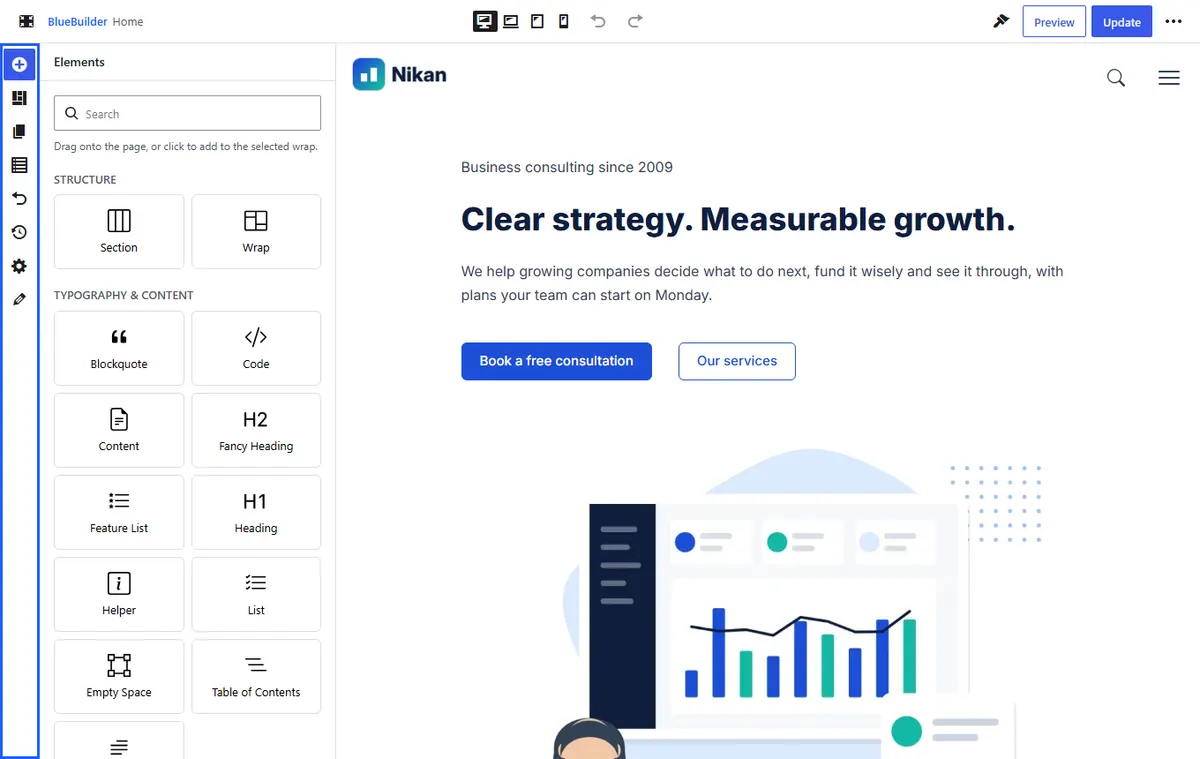
The icons down the side of the panel open its tabs:
| Tab | What it is for |
|---|---|
| Elements | Every element, by category, with a search box. Drag one onto the page, or click it to add it to the selected wrap. Hold the pointer over an element to see what it does. |
| Pre-built sections | Ready-made sections by category (hero, services, pricing…). Click one to add it at the end of the page. |
| Templates | Your saved section templates. Insert a copy adds an independent copy; Insert as global adds a global section that updates wherever it is used. |
| Navigator | The page as a tree of sections, wraps and elements. Click an item to select it, and move it up or down with its arrow buttons; useful for items that are hard to click on the page. |
| History | Every change in this session. Click a step to go back to it. |
| Revisions | Saved versions of the page. Load one to see it, then Update to keep it. |
| Page options | Settings for this page only: layout, header and footer, title bar, colors, custom CSS. See Page Options. |
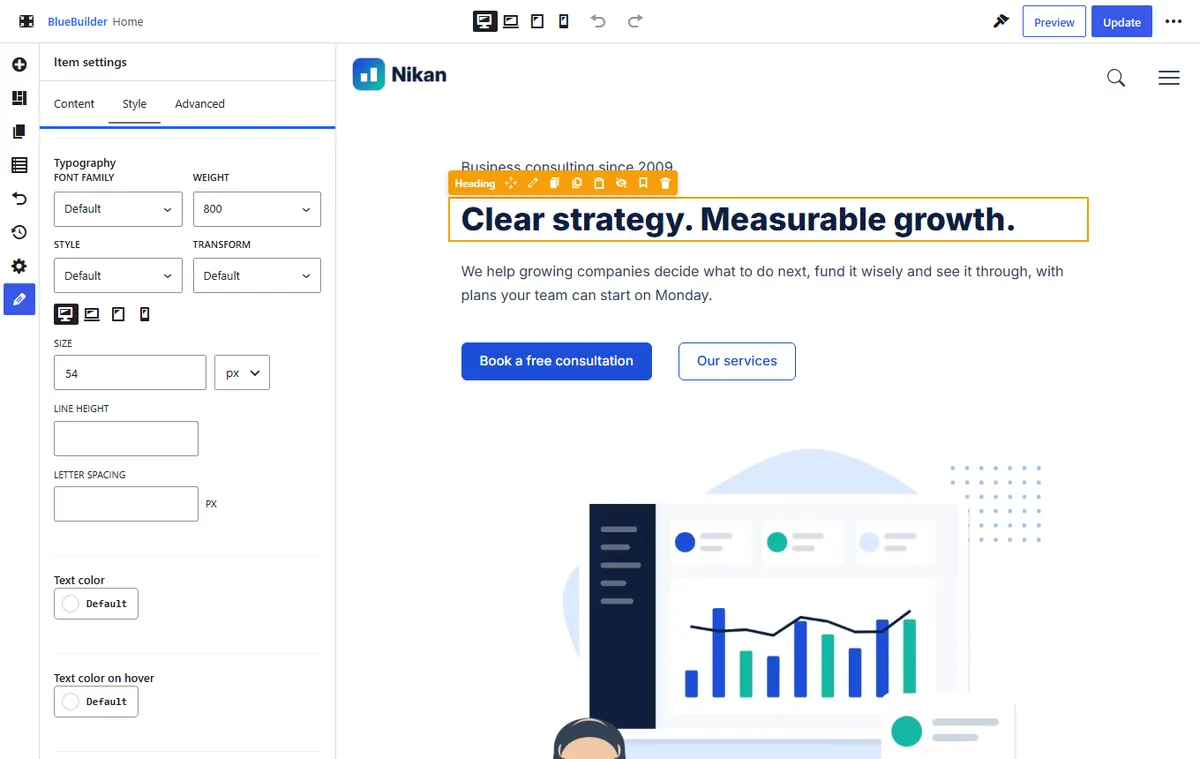
| Item settings | The settings of the selected section, wrap or element, in three tabs: Content, Style and Advanced. |
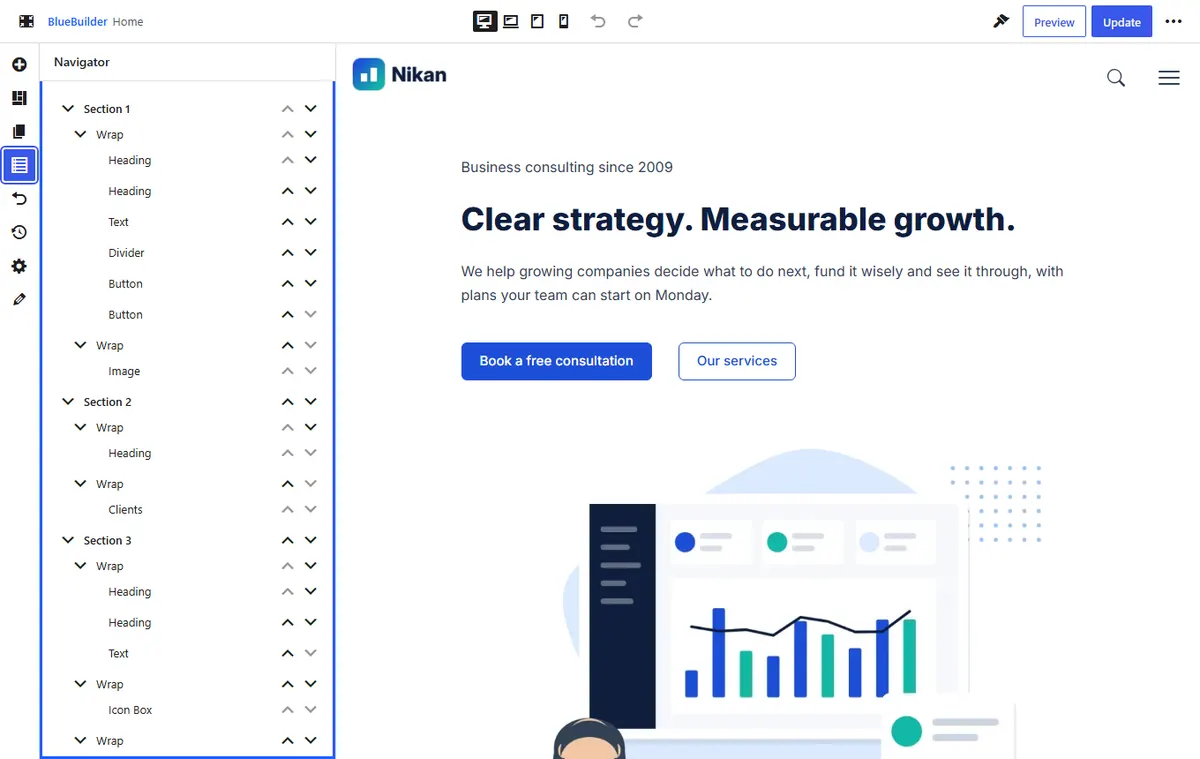
Templates also have a Template settings tab: where the template shows and how it behaves. See templates.
Working on the page
Hover over an item to see its outline and name. Click it to select it: its toolbar appears and its settings open.
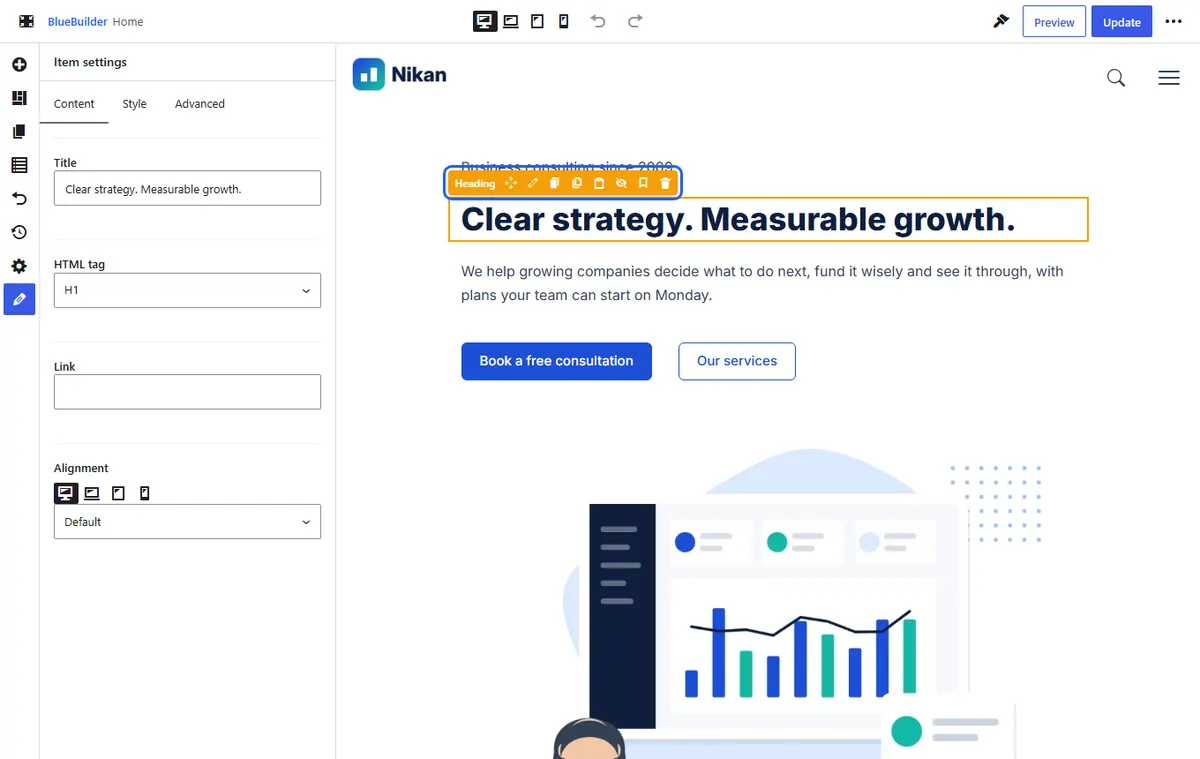
The toolbar, from the start:
- Name and move handle: drag to move the item. You can drop it anywhere the blue line shows, including inside other wraps.
- Edit: opens its settings.
- Duplicate: adds a copy right after it.
- Copy and Paste after this (or inside): copy an item and paste it here, or on another page. The copy stays in your browser until you copy something else.
- Hide on this device: hides it on the device chosen in the top bar. Hidden items stay visible, faded, in the builder.
- Save as template: keeps it in Templates to reuse.
- Delete.
Sections and wraps also have Add element, Add wrap and Add wrap inside buttons, and wraps have a handle on their edge to drag their width.
Text on the page: click a heading, a title or a text and type. In a Text element a small bar offers paragraphs and headings, bold, italic, lists and links.
Settings for each device
Settings with the device icons beside them (sizes, spacing, alignment, columns…) can differ per device. Choose the device in the top bar, then change the value. A device without its own value uses the next larger device's: a value set on Desktop applies everywhere until you set Tablet or Mobile.
Keyboard shortcuts
On a Mac, use ⌘ for Ctrl.
| Keys | Does |
|---|---|
| Ctrl+S | Update (save) |
| Ctrl+Z | Undo |
| Ctrl+Shift+Z or Ctrl+Y | Redo |
| Ctrl+C, Ctrl+V | Copy and paste the selected item |
| Ctrl+D | Duplicate the selected item |
| Delete | Delete the selected item |
| Esc | Stop editing a text |
Saving
- Update saves the page and keeps the old version in Revisions.
- While you work, a copy is kept every minute. If the browser closes before you update, open the page again and click Restore it.
- Leaving the builder with unsaved changes asks you first.
The backend builder
In the WordPress editor, Edit with BlueBuilder shows the same page as a plan of boxes instead of the live page: quicker on a slow computer, and handy for moving whole sections. Edit live switches to the live builder, and Back to the WordPress editor returns to the normal editor. Both builders edit the same layout.
A page made with the WordPress block editor (or Elementor) keeps working as it is. BlueBuilder only takes over a page once you turn it on for that page.