Setup wizard and demo import
The setup wizard installs the plugins the theme works with and imports a ready-made demo site, which you then change into your own. Open it from BlueTheme → Setup wizard. It also opens by itself the first time you reach the dashboard after activating the theme.
1. Welcome
Click Get started. If a demo is already imported, the wizard says so; you decide what happens to it after choosing the next demo. Only remove this demo removes it without importing another one (see Removing a demo).
2. Choose a demo
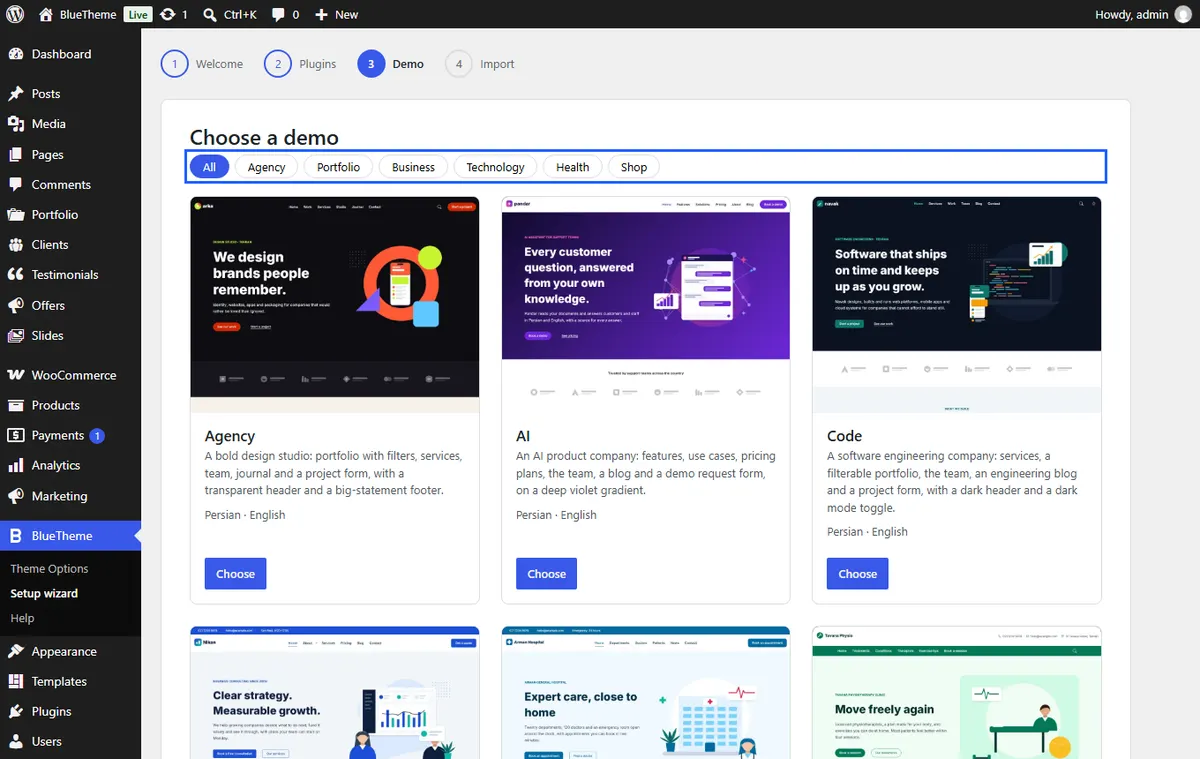
Filter the demos by category, open Live preview to see one online, and click Choose on the one you want. Check for new demos looks for demos published since your version of the theme.
| Demo | What it is |
|---|---|
| Corporate | A consulting firm: services, team, pricing, blog. |
| Agency | A design studio: portfolio with filters, services, journal. |
| Clothing shop | A clothing store with color and size options. |
| Home decor shop | Furniture, lamps and textiles in color variants. |
| Electronics shop | Phones, laptops, audio and wearables. |
| Cosmetics shop | Makeup shades as swatches, skincare and fragrance. |
| Code | A software engineering company: services, portfolio, team, engineering blog. |
| AI | An AI product: features, use cases, pricing plans, team, demo booking. |
| Hospital | A general hospital: departments, doctors, patient information, appointment form. |
| Physiotherapy | A physiotherapy clinic: treatments, conditions, therapists, session prices, booking form. |
| Dental clinic | Check-ups, whitening, implants and braces, dentists, prices, appointment form. |
| Skin and beauty clinic | Facials, laser, skincare plans and acne care, specialists, prices, booking form. |
| Veterinary clinic | Care for dogs and cats: check-ups, vaccines, dental care, surgery, vets, appointment form. |
| Psychology and counseling | Individual, couples, children’s and online sessions, psychologists, prices, booking form. |
Every demo comes in Persian and English.
3. The demo already on your site
This step appears only when a demo is already imported. Choose what happens to its content before the new demo comes in:
- Delete it: its pages, posts, images, menus and widgets are removed and your settings from before it come back, as with Removing a demo.
- Keep it as part of my site: its content stays as your own content. It can no longer be removed from the wizard, and the new demo's removal never touches it.
4. Plugins for this demo
The wizard lists the plugins the chosen demo uses, such as WooCommerce for a shop demo or Contact Form 7 for a demo with a contact form, and whether each is installed and active. Required plugins are marked.
Tick the ones you want and click Install and activate. They install one after another from WordPress.org. If one fails, the reason is shown, for example a plugin that needs a newer PHP. Click Continue when you are done. Without a required plugin, the parts of the demo that use it are skipped.
5. Import
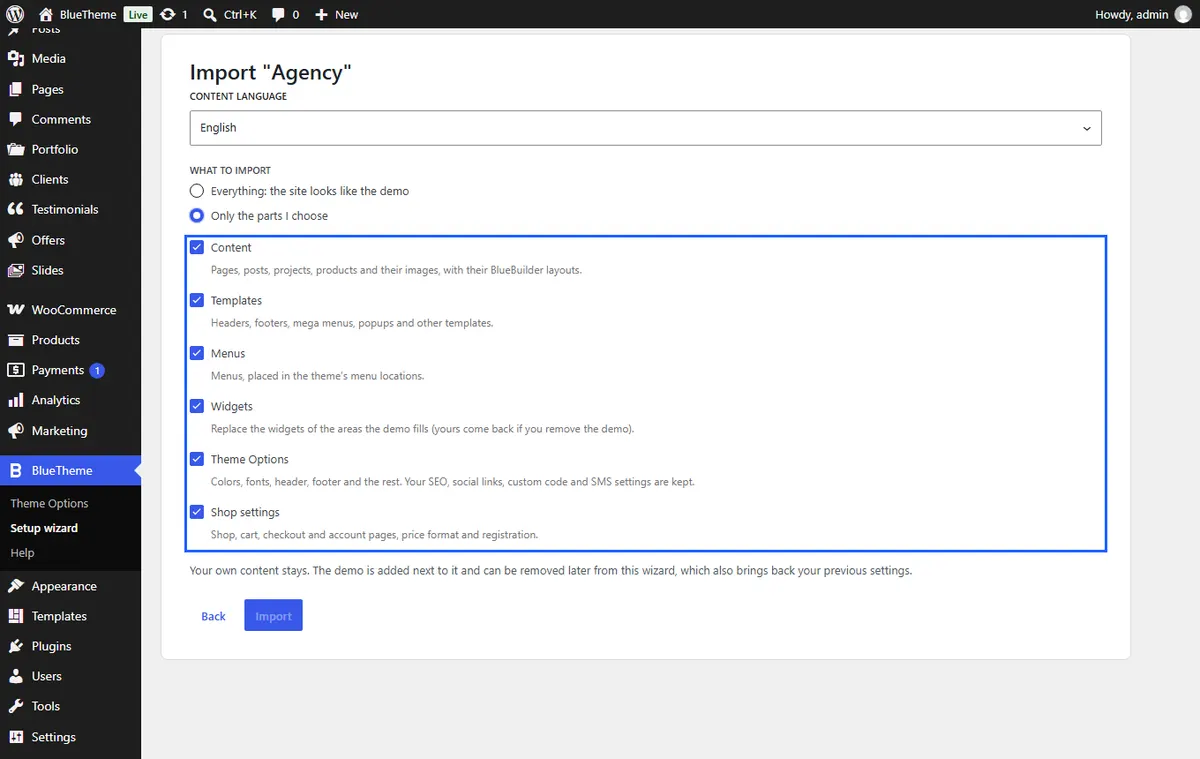
- Content language: Persian or English. The site's language is chosen for you. With Polylang or WPML active, a third choice imports both languages, linked as translations: every page, post, category, template and menu comes in both, each language gets its own menus, and the language switcher moves between the two versions of a page. If the plugin has only one of the languages, the wizard says so and asks whether to add the other (Polylang only; in WPML, add it under WPML → Languages). Polylang is offered as an optional plugin in the previous step.
- What to import:
- Everything: the site looks like the demo.
- Only the parts I choose: tick the parts you want.
| Part | What it brings |
|---|---|
| Content | Pages, posts, projects, products and their images, with their builder layouts. |
| Templates | Headers, footers, mega menus, popups and other templates. |
| Menus | The demo's menus, placed in the theme's menu locations. |
| Widgets | The widgets of the areas the demo fills. Yours come back if you remove the demo. |
| Theme Options | Colors, fonts, header, footer and the rest. Your SEO, social links, custom code and SMS settings are kept. |
| Shop settings | Shop, cart, checkout and account pages, price format and registration. |
- Click Import. A progress bar and a list of steps show what is happening. Large demos take a few minutes; leave the page open.
When it is done, click View the site. Then make it yours: change the logo in Theme Options → Global → Logo, the colors in Colors, and the texts and images on each page with the builder.
Note With both languages, the second language's addresses end in its code, such as
/fa/services-fa/, because Polylang (free) and WordPress need a different address per page. Polylang serves each language's front page at its page address unless Languages → Settings → URL modifications → The front page URL contains the language code instead of the page name is on.
Note Your own content stays. The demo is added next to it, and new pages whose address is already taken get a "-2" at the end, such as
shop-2. Theme Options, widgets, menu locations and the front page are saved before the import, so removing the demo brings them back.
Removing a demo
Open the wizard and click Only remove this demo on the first step, or choose Delete it when you import another demo. Everything the import created is deleted: pages, posts, products, images, categories, menus and templates. The settings saved before the import come back. Content you made yourself is never touched.
Warning Pages that came with the demo are deleted by Remove the demo, even if you changed them. If you built your site on top of the demo, don't remove it.
Exporting your site as a demo
Export this site as a demo, on the wizard's first step, downloads your site as a demo package (a zip) in its current language. Developers can use it to move a design to another site, or to publish their own demos: see the developer guide's Making a demo package.