Templates and global sections
A template is a layout made with the builder and used in many places: the header on every page, the layout of every blog post, a popup. Templates are in the Templates menu of the dashboard.
Kinds of templates
| Type | Used for |
|---|---|
| Header | The top of the site: logo, menu, search, cart. See header and footer. |
| Footer | The bottom of the site. |
| Mega menu | A large dropdown opened by a menu item. See menus. |
| Popup | A window shown on load, on scroll, on exit or on click. See popups. |
| Side panel (off-canvas) | A panel that slides in from the side, opened by a burger button. |
| Single post | The layout of blog posts. |
| Single project | The layout of portfolio projects. |
| Blog archive | The blog page, categories, tags, authors and dates. |
| 404 page | Shown when a page is not found. |
| Section | A reusable section: a global section. |
| Single product, Shop archive | The layout of products, and of the shop page and categories (with WooCommerce). |
Making a template
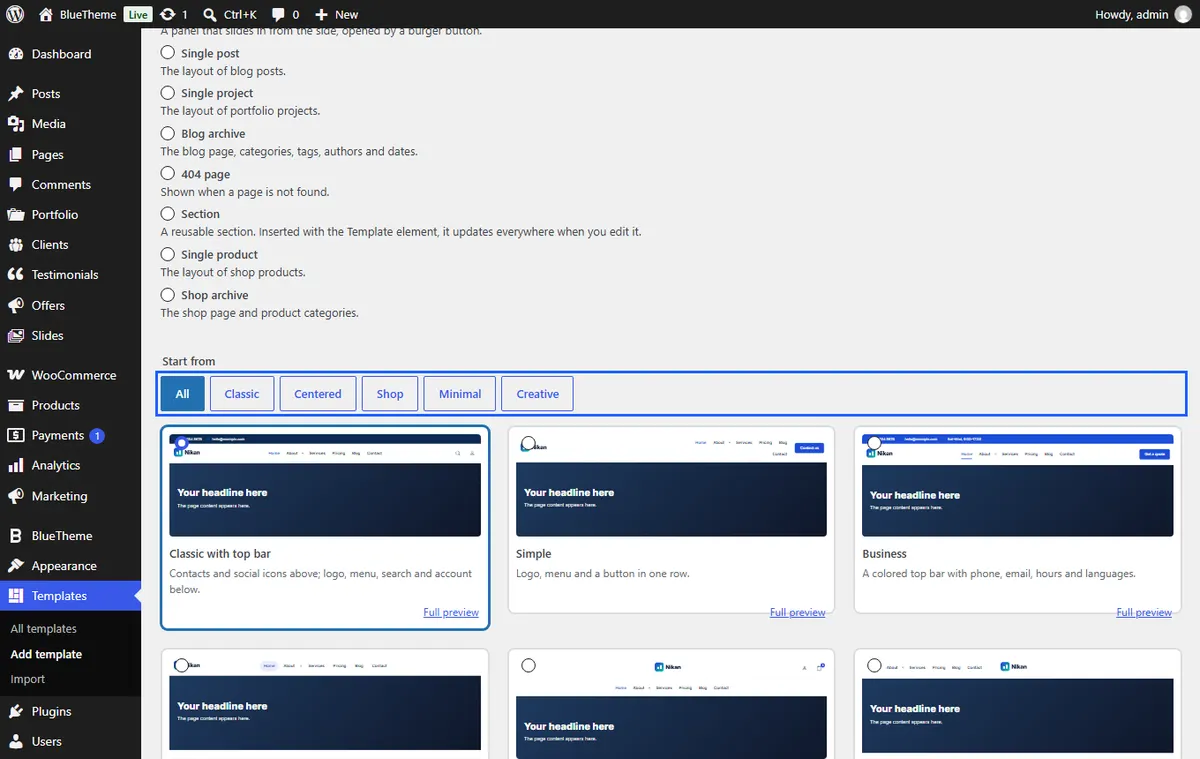
- Go to Templates → Add template.
- Pick the type. Headers and footers offer a gallery of ready-made designs: click Full preview to see one at full size, choose it, and it is copied as your own template. Or start Blank.
- Give it a Name and click Create and open in BlueBuilder.
Single post, project, archive, product and 404 templates start with a complete layout made of the "Post & archive" or "Product page" elements, such as Post Title, Featured Image and Post Content. These elements show the post being viewed. While you edit, the builder shows a sample: choose which one with Preview with in Template settings.
Where a template shows: display conditions
Headers, footers, popups and the single, archive, product and 404 templates show where their display conditions say. Open the template in the builder, then the Template settings tab:
- Click Add where it shows… and pick a place: Entire site, Front page, All single posts and pages, the pages of one type, archives, shop pages and so on, or search for a page, post or category.
- Choose Show on or Not on for each rule. "Entire site, but not on the Contact page" is two rules.
- Click Save display settings.
When two templates of the same type match a page, the more specific one wins: a template for one page beats one for all pages, which beats one for the entire site. Priority settles a tie: the higher number wins.
A page can also choose its own header or footer, or none, in Page Options.
Tip A template with no conditions is not shown anywhere ("No display conditions" in the list). That's a safe way to prepare a new header before switching to it.
Global sections
A global section is a section kept in one place and shown on many pages, such as a call-to-action band or a contact strip. Edit it once, and every page that uses it changes.
- Make one: select a section in the builder and click Save as template in its toolbar. Or create a template of type Section.
- Use it: in the builder's Templates tab, click Insert as global. You can also add the Template element and choose the section in it.
- Edit it: open the template from Templates. On the pages that use it, it is one item: you can move or delete it there, and change it in the template.
Insert a copy in the Templates tab adds an ordinary, independent copy instead, which you then edit on that page alone.
Pre-built sections
The builder's Pre-built sections tab has 30 ready-made sections in ten categories: Hero, About, Services, Features, Team, Pricing, Testimonials, Call to action, Contact, and Numbers & clients. Click one to add it at the end of the page, then change it like anything else. They follow your site's colors and fonts.
Exporting and importing templates
- Export: in Templates, hover over a template and click Export. You get a
.jsonfile. - Import: Templates → Import, choose the file. The template is added as a new one, with its display conditions; check them before relying on them, since pages and categories differ between sites.
Use this to move a header or a popup from one site to another.